gazebo
gazebo world만들고 model 띄워보기
정지홍
2025. 3. 1. 15:21
1. 우선 작업할 폴더를 만들자.
mkdir -p ~/gazebo_ws/src
cd ~/gazebo_ws
colcon build
source install/setup.bash
2. 그리고 OSRF모델을 다운로드 하자.
// 홈 디렉토리로 가서 다운 받는다.
cd ~
git clone https://github.com/osrf/gazebo_models.git

// 환경 변수를 설정하자
export GZ_SIM_RESOURCE_PATH=~/gazebo_models:$GZ_SIM_RESOURCE_PATH


// ---선택사항----
// 만약에 영구적으로 적용하고 싶은 경우에....
echo 'export GZ_SIM_RESOURCE_PATH=~/gazebo_models:$GZ_SIM_RESOURCE_PATH' >> ~/.bashrc
source ~/.bashrc
2. 환경을 정의할 world파일을 만들자
- 2-1. 우선 src에서 패키지를 생성하자.
cd ~/gazebo_ws/src

ros2 pkg create --build-type ament_python my_world --dependencies rclpy gazebo_ros
- 2-2. 그리고 my_world.sdf파일을 만들자. ( 위치는 my_world패키지 안에 worlds디렉토리를 만들고 거기에 작성하자. )

<?xml version="1.0" ?>
<sdf version="1.7">
  <world name="default">

    <!-- Ground Plane -->
    <include>
      <uri>model://ground_plane</uri>
    </include>

    <!-- Sun Light -->
    <include>
      <uri>model://sun</uri>
    </include>

    <!-- Obstacle 1 -->
    <model name="obstacle1">
      <static>true</static>
      <pose>1 1 0 0 0 0</pose>
      <link name="link">
        <visual name="visual">
          <geometry>
            <box>
              <size>1 1 1</size>
            </box>
          </geometry>
          <material>
            <ambient>1 0 0 1</ambient>
          </material>
        </visual>
      </link>
    </model>

    <!-- Obstacle 2 -->
    <model name="obstacle2">
      <static>true</static>
      <pose>-2 -2 0 0 0 0</pose>
      <link name="link">
        <visual name="visual">
          <geometry>
            <box>
              <size>1 1 1</size>
            </box>
          </geometry>
          <material>
            <ambient>0 1 0 1</ambient>
          </material>
        </visual>
      </link>
    </model>

    <!-- Additional obstacles -->
    <model name="obstacle3">
      <static>true</static>
      <pose>3 0 0 0 0 0</pose>
      <link name="link">
        <visual name="visual">
          <geometry>
            <box>
              <size>1 1 1</size>
            </box>
          </geometry>
          <material>
            <ambient>0 0 1 1</ambient>
          </material>
        </visual>
      </link>
    </model>

    <model name="obstacle4">
      <static>true</static>
      <pose>-3 2 0 0 0 0</pose>
      <link name="link">
        <visual name="visual">
          <geometry>
            <box>
              <size>1 1 1</size>
            </box>
          </geometry>
          <material>
            <ambient>1 1 0 1</ambient>
          </material>
        </visual>
      </link>
    </model>

  </world>
</sdf>
3. 맵을 실행해보자.

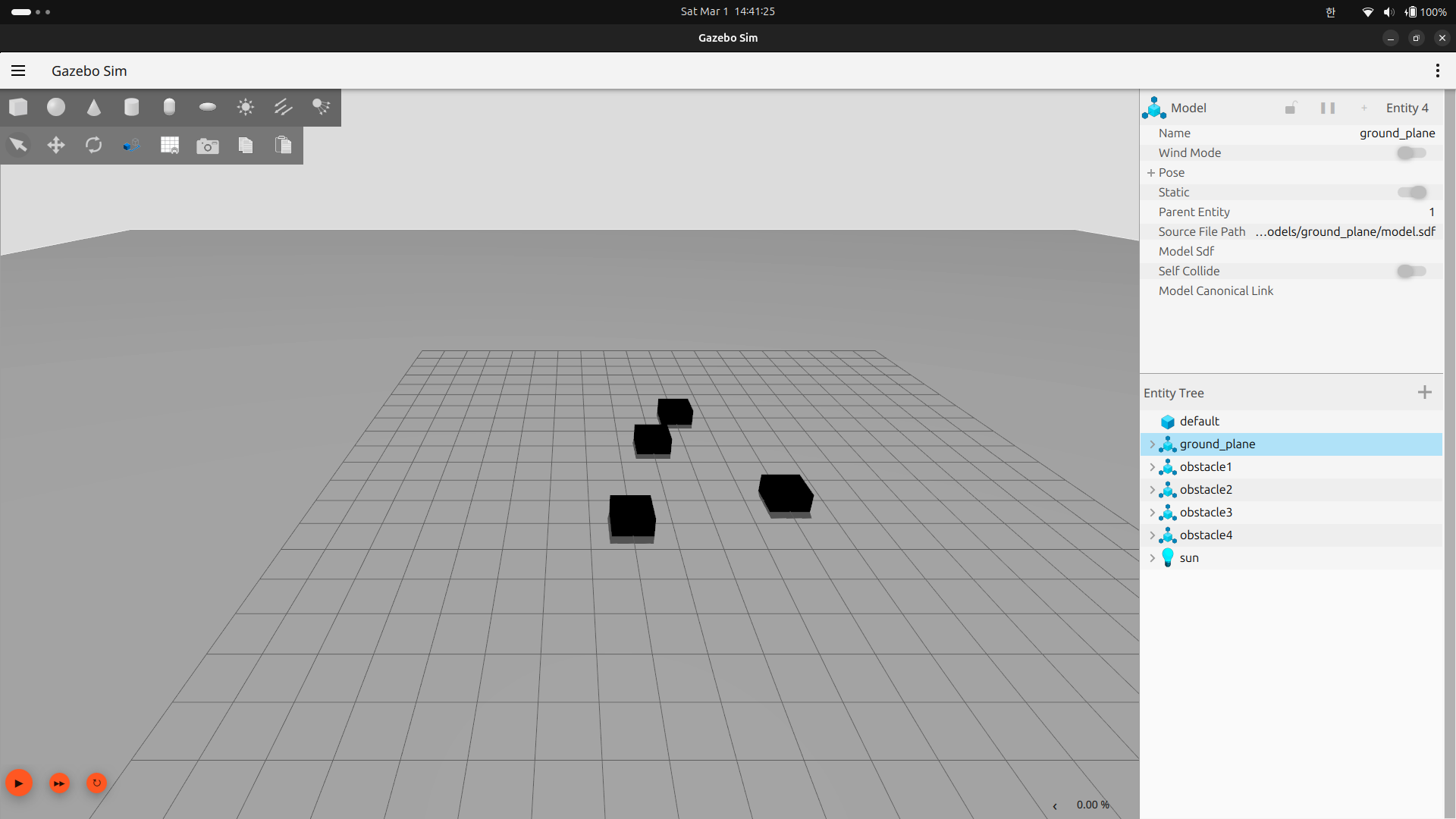
4. 모바일 로봇을 만들 작업 디렉토리를 생성하고 model.sdf를 만들자.

<?xml version="1.0" ?>
<sdf version="1.7">
  <model name="mobile_robot">
    <pose>0 0 0.1 0 0 0</pose>
    <static>false</static>

    <!-- Robot Base -->
    <link name="base_link">
      <pose>0 0 0 0 0 0</pose>
      <inertial>
        <mass>2.0</mass>
        <inertia>
          <ixx>0.01</ixx> <iyy>0.01</iyy> <izz>0.02</izz>
        </inertia>
      </inertial>
      <visual name="base_visual">
        <geometry>
          <box>
            <size>0.4 0.3 0.2</size>
          </box>
        </geometry>
        <material>
          <ambient>0 0 1 1</ambient>
        </material>
      </visual>
      <collision name="base_collision">
        <geometry>
          <box>
            <size>0.4 0.3 0.2</size>
          </box>
        </geometry>
      </collision>
    </link>

    <!-- Left Wheel -->
    <link name="left_wheel">
      <pose>-0.15 0.15 0.05 0 0 0</pose>
      <visual name="left_wheel_visual">
        <geometry>
          <cylinder>
            <radius>0.05</radius>
            <length>0.02</length>
          </cylinder>
        </geometry>
        <material>
          <ambient>0.2 0.2 0.2 1</ambient>
        </material>
      </visual>
      <collision name="left_wheel_collision">
        <geometry>
          <cylinder>
            <radius>0.05</radius>
            <length>0.02</length>
          </cylinder>
        </geometry>
      </collision>
    </link>

    <!-- Right Wheel -->
    <link name="right_wheel">
      <pose>-0.15 -0.15 0.05 0 0 0</pose>
      <visual name="right_wheel_visual">
        <geometry>
          <cylinder>
            <radius>0.05</radius>
            <length>0.02</length>
          </cylinder>
        </geometry>
        <material>
          <ambient>0.2 0.2 0.2 1</ambient>
        </material>
      </visual>
      <collision name="right_wheel_collision">
        <geometry>
          <cylinder>
            <radius>0.05</radius>
            <length>0.02</length>
          </cylinder>
        </geometry>
      </collision>
    </link>

    <!-- Differential Drive Plugin -->
    <plugin name="diff_drive" filename="gz-diff-drive-system">
      <left_joint>left_wheel_joint</left_joint>
      <right_joint>right_wheel_joint</right_joint>
      <wheel_separation>0.3</wheel_separation>
      <wheel_radius>0.05</wheel_radius>
    </plugin>

  </model>
</sdf>
5. 위에서 작성한 모바일 로봇을 my_world.sdf에 추가시키자.
<include>
  <uri>model://mobile_robot</uri>
  <pose>0 0 0.1 0 0 0</pose>
</include>
6. 그리고 model.config를 아래와 같이 작성
- 이는 모바일 로봇에 관련된 config이니, models/mobile_robot디렉토리 안에 넣어주자.
<?xml version="1.0" ?>
<model>
  <name>mobile_robot</name>
  <version>1.0</version>
  <sdf version="1.7">model.sdf</sdf>
  <author>
    <name>Jeongjihong</name>
    <email>example@email.com</email>
  </author>
  <description>Basic mobile robot with differential drive</description>
</model>
7. 그리고 그냥 냅두면 gazebo가 이를 찾을수없다. 그래서 export를 사용하며 모델을 찾을수있게 환경변수를 설정하자.
export GZ_SIM_RESOURCE_PATH=~/gazebo_ws/src/my_world/models:$GZ_SIM_RESOURCE_PATH
8. 이를 실행시켜보면 로봇이 나온것을 볼수있다.
gz sim ~/gazebo_ws/src/my_world/worlds/my_world.sdf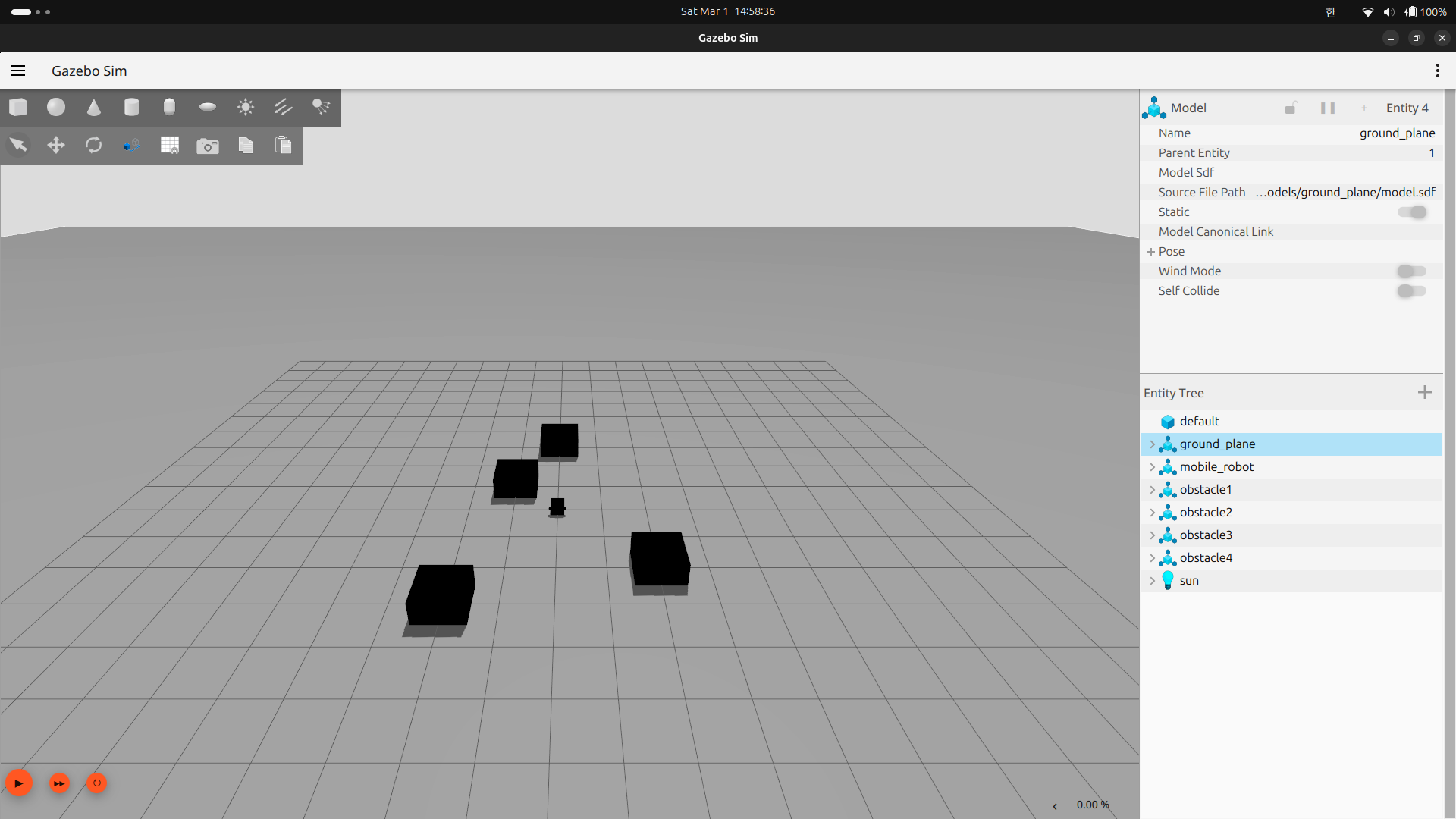
중간 정리
- 지금까지 우선 world에 대한 파일을 만들었다. 그리고 나서 모바일 로봇 파일을 만들고 띄우는 작업까지 완료하였다.
- ( 맵은 실행시켜주는 파일이니 환경 변수를 등록할 필요가 없다. 하지만 모바일 로봇의 경우는 이를 해줘야만 한다. )