네트워크 관련. ip addr , ifconfig , route , ping , traceroute , nslookup , /etc/sysconfig/network-scripts/ifcfg-* , /etc/resolv.conf
ip addr
ip l
# link
# 네트워크 인터페이스를 출력

ip l show 특정인터페이스
# 특정 네트워크 인터페이스 상태 확인
# ex) ip l show wlp0s20f3

ip addr
# address
# IP 주소를 출력

ip addr show 특정인터페이스
# 특정 인터페이스의 ip 확인
# ex) # ex) ip a show wlp0s20f3

sudo ip addr add addr 특정인터페이스
# 특정 인터페이스 ip주소 추가(여러 ip주소를 할당하는것)

ip addr dev ADDRESS dev 특정인터페이스
# 특정 인터페이스에서 ip주소를 제거

ip r
# route
# 라우팅 테이블을 출력
ifconfig
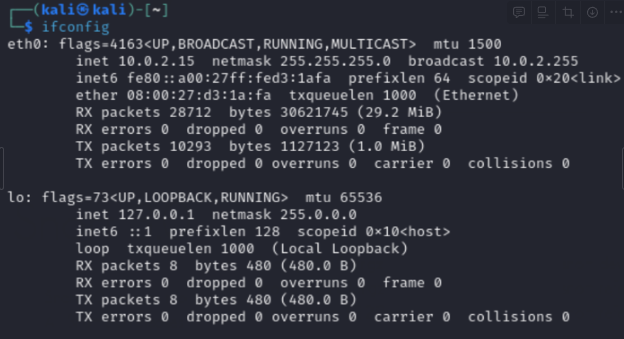
ifconfig
#네트워크 정보를 얻는다.
#eth0은 ethernet0의 축약이며 이는 첫 유선 네트워크 연결을 의미
#그 뒤도 비슷하게 eth1 eth2로 표현될것임

#그 다음은 네트워크 카드의 상태 플래그
#flags=4163<UP , BROADCAST , RUNNING , MULTICAST>

# MTU 1500
# maximum transmission unit 최대 전송 단위

# inet 10.0.2.15 netmask 255.255.255.0
#현재 할당된 아이피 주소 정보

# boradcast 10.0.2.255 브로드캐스트 주소
#이는 정보를 해당 서브넷의 모든 IP로 전달하기 위한 주소

# ehter ....
#네트워크 프로토콜이며 뒤에 하드웨어 주소(mac)이 뒤따른다.

# lo는 루프백 주소 loopback address를 의미
# lo=localhost

# wlan0
#여기에는 없이만 이는 무선 인터페이스 or 어댑터를 보요준다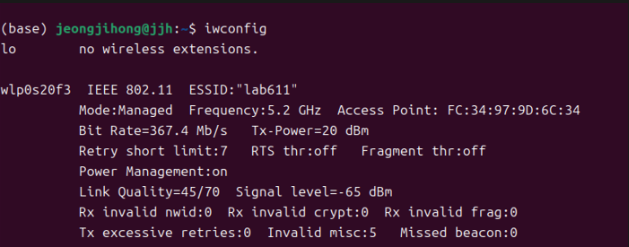
# Interface name: wlp0s20f3
# IEEE 802.11: 무선 네트워크 표준을 의미
# ESSID: "lab611" 무선 네트워크의 SSID(service set identifier)
# Mode: Managed 인터페이스는 관리 모드(Managed mode)로 작동을 의미
# Frequency: 5.2 GHz 사용중인 주파수 대역
# Access Point: FC:34:97:9D:6C:34 연결된 액세스 포인트의 맥주소
# Bit Rate: 367.4 Mb/s 현재 연결 속도
# Retry short limit: 7 데이터 패킷 재전송 시도 횟수 한계
# Link Quality: 45/70 무선 신호 강도
cmd에서 ipconfig의 일부분...
==================================================
IPv4 주소 . . . . . . . . . : 117.17.142.140
서브넷 마스크 . . . . . . . : 255.255.255.0
기본 게이트웨이 . . . . . . : 117.17.142.1
==================================================
네트워크 부분은 117.17.142이며 140은 호스트 부분을 의미한다.
즉, 네트워크 부분은 117.17.142 호스트 부분은 140이다.
기본게이트 웨이는 네트워크의 다른 네트워크로 패킷을 보내기 위해 사용하는 라우터의 IP주소
일반적으로 호스트부분의 첫번째 주소나 네트워크 관리자가 지정한 주소.
서브넷 마스크가 255.255.255.0인 경우, 이 서브넷은 아래과 같은 범위를 가진다.
- **네트워크 주소**: 117.17.142.0
- **첫 번째 사용 가능한 호스트 주소**: 117.17.142.1
- **마지막 사용 가능한 호스트 주소**: 117.17.142.254
- **브로드캐스트 주소**: 117.17.142.255route
(base) jeongjihong@jjh:/dev$ route -n

Kernel IP routing table
Destination     Gateway         Genmask         Flags Metric Ref    Use Iface
0.0.0.0         192.168.50.1    0.0.0.0         UG    600    0        0 wlp0s20f3
192.168.50.0    0.0.0.0         255.255.255.0   U     600    0        0 wlp0s20f3

# Destination     Gateway         Genmask
# 목적지_네트워크   게이트웨이_주소  목적지의_넷마스크_주소

# Flags
# 해당 경로에 대한 정보를 알려줌.
# U - up, H - 목적지 Host, G - 게이트웨이 사용

# Metric                Ref         Use      Iface
# 목적지_네트워크까지_거리 경로참조힛수  경로탐색횟수   인터페이스
(base) jeongjihong@jjh:/dev$ sudo route add default gw 192.168.50.2
(base) jeongjihong@jjh:/dev$ route -n
Kernel IP routing table
Destination Gateway Genmask Flags Metric Ref Use Iface
0.0.0.0 192.168.50.2 0.0.0.0 UG 0 0 0 wlp0s20f3
0.0.0.0 192.168.50.1 0.0.0.0 UG 600 0 0 wlp0s20f3
192.168.50.0 0.0.0.0 255.255.255.0 U 600 0 0 wlp0s20f3
(base) jeongjihong@jjh:/dev$
route add default gw <게이트웨이 IP 정보>
# 디폴트 라우팅 추가
# 설정으로만 본다면 192.168.50.2 게이트웨이를 통해 0.0.0.0 모든 대역으로 접근이 가능(base) jeongjihong@jjh:/dev$ sudo route del default gw 192.168.50.2
(base) jeongjihong@jjh:/dev$ route -n
Kernel IP routing table
Destination Gateway Genmask Flags Metric Ref Use Iface
0.0.0.0 192.168.50.1 0.0.0.0 UG 600 0 0 wlp0s20f3
192.168.50.0 0.0.0.0 255.255.255.0 U 600 0 0 wlp0s20f3
route del default gw <게이트웨이 IP 정보>
# 디폴트 라우팅 제거(base) jeongjihong@jjh:/dev$ sudo route add -net 0.0.0.0 netmask 255.255.255.0 gw 192.168.50.1
(base) jeongjihong@jjh:/dev$ route -n
Kernel IP routing table
Destination Gateway Genmask Flags Metric Ref Use Iface
0.0.0.0 192.168.50.1 255.255.255.0 UG 0 0 0 wlp0s20f3
0.0.0.0 192.168.50.1 0.0.0.0 UG 600 0 0 wlp0s20f3
192.168.50.0 0.0.0.0 255.255.255.0 U 600 0 0 wlp0s20f3
route add -net <네트워크 대역> netmask <넷마스크> gw <게이트웨이 IP 정보>
# 네트워크 경로 추가(base) jeongjihong@jjh:/dev$ sudo route del -net 0.0.0.0 netmask 255.255.255.0 gw 192.168.50.1
(base) jeongjihong@jjh:/dev$ route -n
Kernel IP routing table
Destination Gateway Genmask Flags Metric Ref Use Iface
0.0.0.0 192.168.50.1 0.0.0.0 UG 600 0 0 wlp0s20f3
192.168.50.0 0.0.0.0 255.255.255.0 U 600 0 0 wlp0s20f3
route del -net <네트워크 대역> netmask <넷마스크> gw <게이트웨이 IP 정보>
# 네트워크 경로 제거(base) jeongjihong@jjh:/dev$ sudo route add -host 117.17.142.140 gw 192.168.50.1 dev wlp0s20f3
(base) jeongjihong@jjh:/dev$ route -n
Kernel IP routing table
Destination Gateway Genmask Flags Metric Ref Use Iface
0.0.0.0 192.168.50.1 0.0.0.0 UG 600 0 0 wlp0s20f3
117.17.142.140 192.168.50.1 255.255.255.255 UGH 0 0 0 wlp0s20f3
192.168.50.0 0.0.0.0 255.255.255.0 U 600 0 0 wlp0s20f3
route add -host <호스트IP> gw <게이트웨이 IP 정보> dev <인터페이스 정보>
# 호스트 경로 추가(base) jeongjihong@jjh:/dev$ sudo route del -host 117.17.142.140 gw 192.168.50.1 dev wlp0s20f3
(base) jeongjihong@jjh:/dev$ route -n
Kernel IP routing table
Destination Gateway Genmask Flags Metric Ref Use Iface
0.0.0.0 192.168.50.1 0.0.0.0 UG 600 0 0 wlp0s20f3
192.168.50.0 0.0.0.0 255.255.255.0 U 600 0 0 wlp0s20f3
route del -host <호스트IP> gw <게이트웨이 IP 정보> dev <인터페이스 정보>
# 호스트 경로 제거ping
지정한 IP나 주소로 ICMP 프로토콜을 이용하여 패킷을 전송하고 응답을 받는 것을 이용해 네트워크의 상태를 파악하는 명령어
(base) jeongjihong@jjh:/dev$ ping 127.0.0.1 -c 3
PING 127.0.0.1 (127.0.0.1) 56(84) bytes of data.
64 bytes from 127.0.0.1: icmp_seq=1 ttl=64 time=0.059 ms
64 bytes from 127.0.0.1: icmp_seq=2 ttl=64 time=0.059 ms
64 bytes from 127.0.0.1: icmp_seq=3 ttl=64 time=0.064 ms

--- 127.0.0.1 ping statistics ---
3 packets transmitted, 3 received, 0% packet loss, time 2069ms
rtt min/avg/max/mdev = 0.059/0.060/0.064/0.002 ms

# c옵션은 몇번 보낼ㅣ 정함


(base) jeongjihong@jjh:/dev$ ping 127.0.0.1 -D
PING 127.0.0.1 (127.0.0.1) 56(84) bytes of data.
[1720010311.710165] 64 bytes from 127.0.0.1: icmp_seq=1 ttl=64 time=0.076 ms
[1720010312.747566] 64 bytes from 127.0.0.1: icmp_seq=2 ttl=64 time=0.062 ms
[1720010313.771482] 64 bytes from 127.0.0.1: icmp_seq=3 ttl=64 time=0.061 ms
[1720010314.795572] 64 bytes from 127.0.0.1: icmp_seq=4 ttl=64 time=0.063 ms

# D옵션은 결과앞에 타임스탬프 출력


(base) jeongjihong@jjh:/dev$ ping 127.0.0.1 -i 3
PING 127.0.0.1 (127.0.0.1) 56(84) bytes of data.
64 bytes from 127.0.0.1: icmp_seq=1 ttl=64 time=0.059 ms
64 bytes from 127.0.0.1: icmp_seq=2 ttl=64 time=0.052 ms
^C
--- 127.0.0.1 ping statistics ---
2 packets transmitted, 2 received, 0% packet loss, time 3029ms
rtt min/avg/max/mdev = 0.052/0.055/0.059/0.003 ms

# interval


-O옵션은 전송한 패킷에 대한 응답 패킷을 출력
통신이 정상적이면 평소와 출력이 같지만
통신이 안될 때는 전송한 패킷 중 어디에서 오류가 발생하는지 출력


(base) jeongjihong@jjh:/dev$ ping 127.0.0.1 -R
PING 127.0.0.1 (127.0.0.1) 56(124) bytes of data.
64 bytes from 127.0.0.1: icmp_seq=1 ttl=64 time=0.067 ms
RR: 	127.0.0.1
	127.0.0.1
	127.0.0.1
	127.0.0.1

64 bytes from 127.0.0.1: icmp_seq=2 ttl=64 time=0.065 ms	(same route)
64 bytes from 127.0.0.1: icmp_seq=3 ttl=64 time=0.062 ms	(same route)
64 bytes from 127.0.0.1: icmp_seq=4 ttl=64 time=0.064 ms	(same route)
64 bytes from 127.0.0.1: icmp_seq=5 ttl=64 time=0.071 ms	(same route)
^C
--- 127.0.0.1 ping statistics ---
5 packets transmitted, 5 received, 0% packet loss, time 4133ms
rtt min/avg/max/mdev = 0.062/0.065/0.071/0.003 ms

# 전송한 패킷의 라우터 경로를 출력
# 최대 9개 출력이며 라우나 방화벽에서 막으면 확인 불가
traceroute
traceroute는 패킷이 네트워크를 통해 목적지로 가는 경로를 추적하는 것이다.
여기서 각 hop은 네트워크 경로상의 중간 라우터를 나타냄
- RT-AX56U-6C30 (192.168.50.1) : 첫 번째 홉은 로컬 네트워크의 라우터
- 2번째 줄부터 12번째 까지는 다음 홉의 ip주소와 패킷 왕복시간을 나타냄
- ***은 응답이 없는 홉을 나타냄
(base) jeongjihong@jjh:/etc$ traceroute www.naver.com
traceroute to www.naver.com (223.130.200.219), 30 hops max, 60 byte packets
 1  RT-AX56U-6C30 (192.168.50.1)  1.109 ms  1.391 ms  3.267 ms
 2  117.17.142.1 (117.17.142.1)  4.737 ms  4.717 ms  4.992 ms
 3  203.249.122.130 (203.249.122.130)  3.643 ms  4.070 ms  4.638 ms
 4  203.252.8.73 (203.252.8.73)  7.317 ms  8.043 ms  8.022 ms
 5  1.208.140.21 (1.208.140.21)  4.863 ms 1.213.141.21 (1.213.141.21)  6.165 ms 1.208.141.9 (1.208.141.9)  6.716 ms
 6  1.208.140.9 (1.208.140.9)  6.437 ms 100.70.18.5 (100.70.18.5)  3.116 ms 1.213.100.217 (1.213.100.217)  2.413 ms
 7  1.208.146.9 (1.208.146.9)  6.266 ms 1.213.150.209 (1.213.150.209)  5.747 ms 1.208.146.9 (1.208.146.9)  7.266 ms
 8  1.208.165.138 (1.208.165.138)  7.246 ms 1.213.153.154 (1.213.153.154)  4.507 ms 1.213.149.210 (1.213.149.210)  4.546 ms
 9  182.162.153.114 (182.162.153.114)  4.898 ms 117.52.240.134 (117.52.240.134)  5.324 ms 117.52.240.194 (117.52.240.194)  2.890 ms
10  117.52.1.154 (117.52.1.154)  3.504 ms  4.312 ms 211.233.33.6 (211.233.33.6)  3.925 ms
11  10.22.67.254 (10.22.67.254)  5.068 ms 10.22.67.246 (10.22.67.246)  6.732 ms 10.22.67.242 (10.22.67.242)  7.379 ms
12  10.118.1.66 (10.118.1.66)  4.712 ms 10.118.1.130 (10.118.1.130)  5.084 ms 10.118.1.138 (10.118.1.138)  5.552 ms
13  * * *
14  * * *
15  * * *
16  * * *
nslookup
nslookup은 도메인 이름을 ip주소로 변환하거나 반대로 ip주소를 도메인 이름으로 변환하는데 사용되는 dns조회 명령어이다.
(base) jeongjihong@jjh:/etc$ nslookup www.naver.com
Server:		127.0.0.53
Address:	127.0.0.53#53

Non-authoritative answer:
www.naver.com	canonical name = www.naver.com.nheos.com.
Name:	www.naver.com.nheos.com
Address: 223.130.192.247
Name:	www.naver.com.nheos.com
Address: 223.130.200.219
Name:	www.naver.com.nheos.com
Address: 223.130.192.248
Name:	www.naver.com.nheos.com
Address: 223.130.200.236
/etc/sysconfig/network-scripts/ifcfg-*
- red hat 기반에서 사용
- 네트워크 인터페이스 설정 파일이 위치하는 디렉토리
- 이 디렉토리 안에는 네트워크 인터페이스 각각에 대한 설정 파일들이 포함
- 파일 들은 ifcfg-로 시작하며 뒤에 인터페이스 이름이 붙는다. ex)ifcfg-eth0
- 안에는 ip주소,네트워크 마스크,게이트웨이,dns서버 등 다양한 네트워크 설정 존재
[root@88755092cc18 network-scripts]# ls
ifcfg-ens3
[root@88755092cc18 network-scripts]# cat ifcfg-ens3
TYPE=Ethernet    #이 인터페이스가 Ethernet타입임을 지정
PROXY_METHOD=none  #네트워크 프록시 설정 방법 지정. 여기서는 none
BROWSER_ONLY=no  #브라우저 전용 모드를 사용하지 않음을 나타냄.
BOOTPROTO=dhcp  #부팅 시 IP 주소를 어떻게 할당받을지를 설정 | none: 수동 설정
                #dhcp: DHCP 서버를 통해 자동으로 IP 주소를 할당 | static: 고정 IP 주소 설정
DEFROUTE=yes  #이 인터페이스를 기본 라우트로 사용
IPV4_FAILURE_FATAL=no #IPv4 설정 실패 시 치명적이지 않음을 나타냄
IPV6INIT=yes  #IPv6를 활성화
IPV6_AUTOCONF=yes  #자동으로 IPv6 주소를 설정
IPV6_DEFROUTE=yes  #이 인터페이스를 IPv6 기본 라우트로 사용
IPV6_FAILURE_FATAL=no ##IPv6 설정 실패 시 치명적이지 않음을 나타냄
NAME=ens3 #인터페이스의 이름을 지정
UUID=534629aa-e625-4e65-b3d3-f50677ea4ac3  #고유 식별자
DEVICE=ens3 #네트워크 인터페이스의 이름을 지정
ONBOOT=yes #시스템 부팅 시 이 인터페이스를 활성화 함

BOOTPROTO=static으로 설정할 경우 필수 옵션
IPADDR: 고정 IP 주소.
NETMASK: 서브넷 마스크.
GATEWAY: 기본 게이트웨이.
DNS1: 기본 DNS 서버
/etc/resolv.conf
/etc/resolv.conf
- DNS설정을 관리하는데 사용
- 시스템이 도메인 이름을 ip주소로 변환할 때 사용할 DNS서버를 지정
- nameserver <DNS 서버 IP 주소> → DNS서버의 ip주소를 지정
- search <도메인 검색 리스트> → 검색 도메인 리스트를 지정
- options <기타 옵션>
도메인 검색 리스트
→ 불완전한 호스트 이름을 환전한 도메인 이름으로 변환 하는데 사용
→ ex) search test.com abc.com 이거는 2개의 도메인 접미사를 지정 → 만약 ping server1실행시 server1.test.com server1.abc.com server1 순서대로 조회를 한다. 이를 통해서 완전한 도메인 이름을 일일이 입력 안하고도 쉽게 조회가 가능. search .은 검색 도메인으로 현재 도메인을 사용한다는것
(base) jeongjihong@jjh:/etc$ cat /etc/resolv.conf
# This is /run/systemd/resolve/stub-resolv.conf managed by man:systemd-resolved(8).
# Do not edit.
#
# This file might be symlinked as /etc/resolv.conf. If you're looking at
# /etc/resolv.conf and seeing this text, you have followed the symlink.
#
# This is a dynamic resolv.conf file for connecting local clients to the
# internal DNS stub resolver of systemd-resolved. This file lists all
# configured search domains.
#
# Run "resolvectl status" to see details about the uplink DNS servers
# currently in use.
#
# Third party programs should typically not access this file directly, but only
# through the symlink at /etc/resolv.conf. To manage man:resolv.conf(5) in a
# different way, replace this symlink by a static file or a different symlink.
#
# See man:systemd-resolved.service(8) for details about the supported modes of
# operation for /etc/resolv.conf.

nameserver 127.0.0.53
options edns0 trust-ad
search .


[root@88755092cc18 network-scripts]# cat /etc/resolv.conf
# Generated by Docker Engine.
# This file can be edited; Docker Engine will not make further changes once it
# has been modified.

nameserver 192.168.65.7

# Based on host file: '/etc/resolv.conf' (legacy)
# Overrides: []
ntpd
→ ntpd는 ntp 서버를 참조해 시스템 클록을 보정하며 클라이언트에게 시간을 제공하는 데몬
→ NTP : network time protocol
→ ntp 방식은 straum이라는 계층 구조를 가짐
→ straum 0 : GPS나 세슘원자 시계등 시간을 구하는 장비
→ straum 1 : GPS나 세슘원자 시계등에서 직접 시간을 동기화하는 서버를 의미
→ straum 2,3 : 트리구조를 형성하는데 보통 straum 2에서 동기화하고 straum 3 서버에서 나머지 서버들을 동기화 시켜 straum 1 서버들의 부하를 줄여줌
→ ntp는 mdp 123을 기본 포트로 사용함

위에는 /etc/ntp.conf 파일이다
driftfile , key는 배포판마다 path가 다를수 있다.
driftfile은 시간 오차치를 보존해 두는 파일이며 ntpd데몬에 의해 자동 생성
key는 인증받기 위한 파일
restrict default no modify notary noquery 설정은 기본으로 모든 권한을 주지 않음을 의미
restrict 127.0.0.1은 서버 자신에서는 모든 권한을 가짐을 의미

ntpq -q

# *는 현재 동기화를 받음을 의미
# +는 접속은 가능하나 동기화를 하고 있지 않음
# -는 접속은 가능하나 동기화 리스트에서 제외
# 아무것도 없으면 접속 불가능을 의미
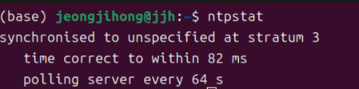
ntpstat
# ntp를 이용하 시스템 시간 동기화 상태를 확인하는데 사용
# 시스템이 얼마나 NTP서버와 동기화가 잘 되어있는지 알려줌

# synchronised to unspecified at stratum 3
# -> unspecified는 NTP서버ㄹ 확인할 수 없거나 기본 서버와 동기화 되어 있음을 알려줌

# time correct to within 82 ms
# 시스템 시간이 ntp서버와 최대 82ms 차이가 있음을 알려줌

# polling server every 64 s
# 시스템이 64초마다 NTP 서버를 폴링하여 시간 정보를 갱신하고 있음을 나타냄